Club Configuration
Some clubs have their own fan-facing page on Fotboll Play — a public site where supporters watch that club's videos, highlights, and streams. Club Configuration is where you control how that page looks and what it shows: the club's branding, colours, menu, front-page content, and the pre-/post-roll videos that play around clips.
This guide walks you through customizing your club's fan page from Forzify MAM.
Availability
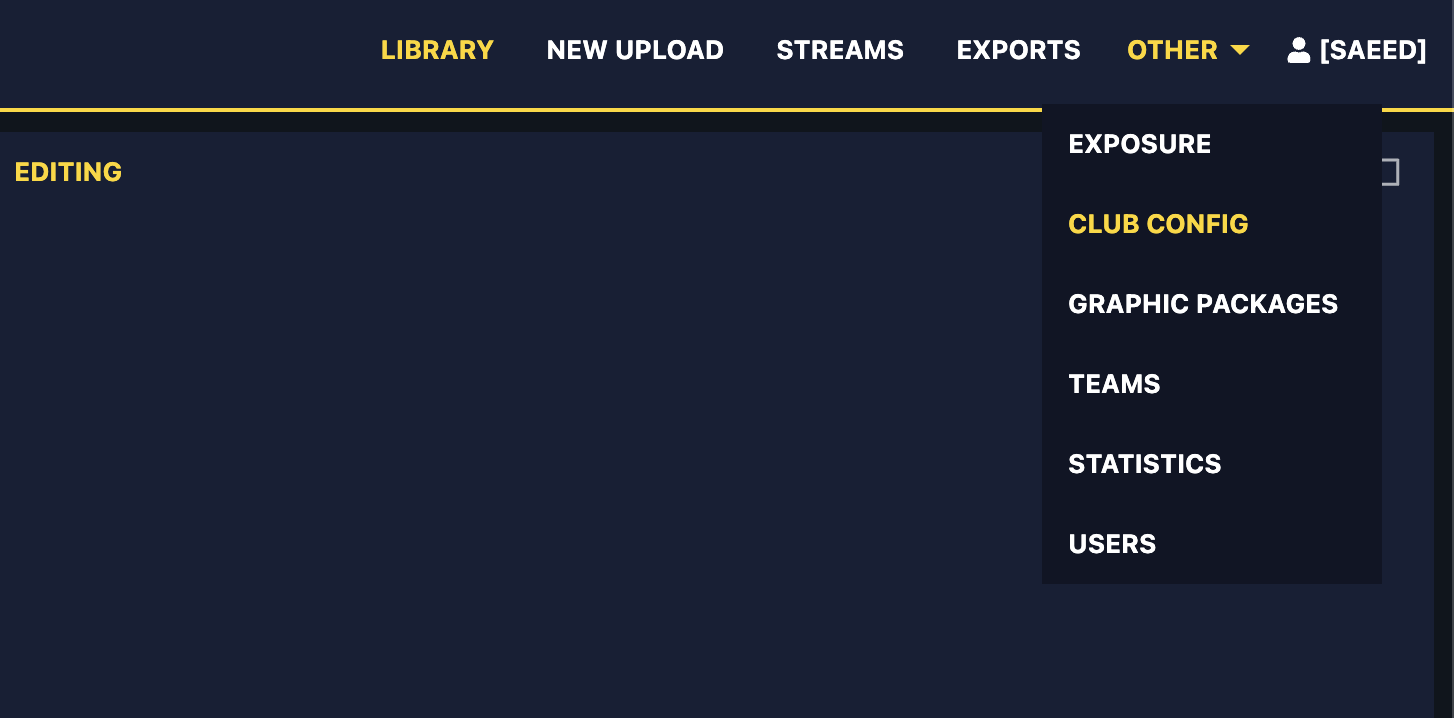
Club Configuration is only available on Fotboll Play (SEF). If you do not see Club config under the Other menu, this feature is not enabled for your organization — please contact our Support Team.
- Club users land directly on their own club's configuration.
- Administrators can switch between the main Fotboll Play site and every club in Allsvenskan, Superettan, and the "Other" group.
1. Open the Club Config Page
- In the top navigation bar, open the Other menu and click Club config.
2. Find Your Way Around
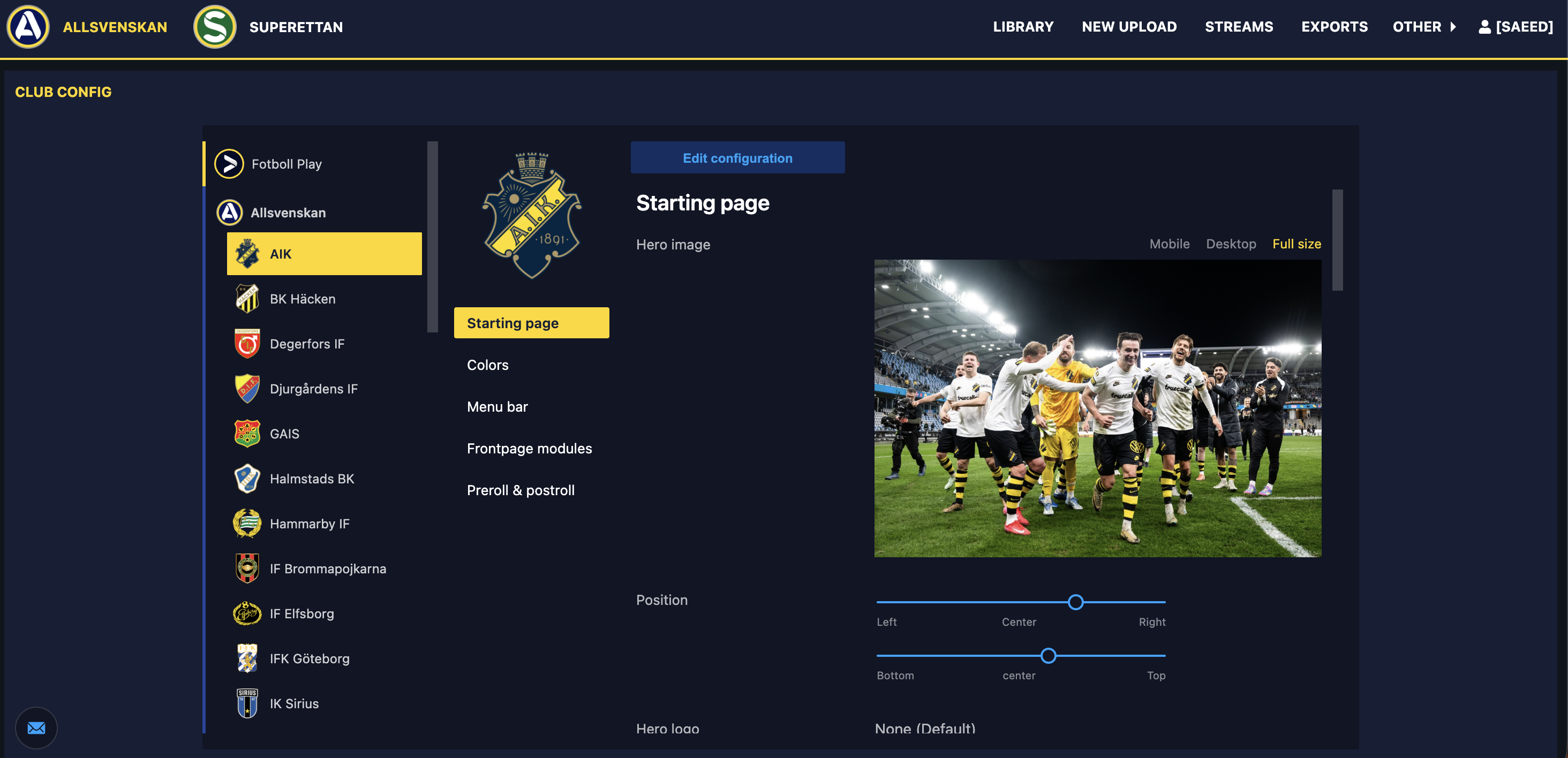
The Club Config page has three parts:
- Team list (administrators only) — down the left side, with Fotboll Play (the main site) at the top, followed by Allsvenskan, Superettan, and Other. Click a club logo to load that club's configuration. Club users skip this — you only ever see your own club.
- Section menu — the five sections you can edit: Starting page, Colors, Menu bar, Frontpage modules, and Preroll & postroll.
- Controls (top-right) — the Edit configuration button, plus the preview/submit/discard buttons once you are editing.
3. Enter Edit Mode
The page opens in read-only mode. Click Edit configuration to start making changes. While editing you can move freely between the five sections — your changes are kept until you submit or discard them, and the MAM warns you if you try to leave with unsaved changes.
4. Starting Page (Hero)
- Hero image — click Change to upload a new banner image. The highlighted box shows the area that stays visible across screen sizes.
- Hero logo — upload or reset the club logo shown over the banner.
- Position — align the logo/text horizontally (Left / Center / Right) and vertically.
- Hero message — type the short text shown on the banner. Use Reset to return to the original.
5. Colors
The club's palette is built from a few main colours: Primary, Accent, Contrast, Header, and Background. Change these and the MAM applies them consistently across the fan page.
- Dark mode — toggle to preview the dark theme. The Background colour can only be edited while dark mode is on.
- Color overrides (advanced) — expand Show to fine-tune individual page elements. Use this carefully: overriding colours can hurt readability.
- Insufficient contrast warning — if a colour combination is hard to read, the MAM flags it here for accessibility.
- Reset all colors — reverts every colour change back to the saved version.
6. Menu Bar
The menu bar is the list of collections shown at the top of the fan page (for example Senaste målen, Matcher).
- Drag to reorder the collections that make up the menu.
- Add collections to manage — pick from the Possible menus list to add new entries.
- Entries beyond the visible width fold into a MER (More) dropdown on the fan page.
- Reset menu bar restores the original menu.
7. Frontpage Modules
Modules are the content rows shown down the club's front page. Choose from category modules (e.g. latest uploads, greatest goals) and match event modules (e.g. goals, cards).
- Drag to reorder the modules to set how the front page is stacked.
- Add modules from the Possible category modules and Possible match event modules lists.
- Some modules have a Title and Format you can set; the Create account banner module also has editable text and shows only to logged-out visitors.
- Hover the ℹ️ info icon on a module to see exactly what content it pulls in.
- Reset frontpage modules restores the original layout.
8. Preroll & Postroll
Upload the short videos that play before (preroll) and after (postroll) a clip on the fan page.
- Click to add a roll, then provide the Video, a Title, and a Thumbnail, and click Upload.
- Use Remove to delete an existing preroll or postroll.
9. Preview Your Changes
Before publishing, check how the page will look:
- Open live preview — opens the fan page in a new window with your unsaved changes applied. It updates as you keep editing.
- Copy preview link — copies a shareable preview URL to your clipboard, so you can review it elsewhere or send it to a colleague for approval.
10. Submit or Discard
- Submit — saves your changes and publishes them to the fan page.
- Discard — throws away every unsaved change after a confirmation.
Changes take up to 15 minutes
After you submit, it can take up to 15 minutes for the changes to appear on fotbollplay.se.
Need Help?
If you have branding requirements or run into any issues while configuring your club's page, please reach out to our Support Team.