Adjusting Video Intervals
This guide will walk you through the process of adjusting video intervals in different clips. Follow these simple steps to fine-tune your video intervals, edit metadata, and manage permissions effectively.
Steps to Adjust Video Intervals
Before You Begin
Ensure you are logged into the platform and have the necessary permissions to edit videos.
1. Navigate to Video:
After logging in, you can select a video from different tabs depending on where it is located:
- Matches: Choose the match you want the video from.
- Official Events: Select from official event clips.
- Club Content: Choose videos uploaded/edited as club content.
Navigate to the appropriate section and locate the video you wish to edit.
2. Select Video:
Once you locate the desired video, click on its thumbnail to begin editing.
3. Adjust Video Duration:
Now that you've selected the video, follow these steps to adjust its interval:
-
Click the "Adjust Video Interval" button.
-
A blue bar representing the video’s timeline will appear. You can click and drag the edges of this bar to either increase or decrease the video duration.
-
Once you're satisfied with your selection:
- Click "Save" to apply the changes.
- Click "Discard" if you want to revert back to the original duration.

4. Edit Metadata:
Optionally, you can edit the metadata of your video for better identification and presentation. Click the "Edit Metadata" button to access the following options:
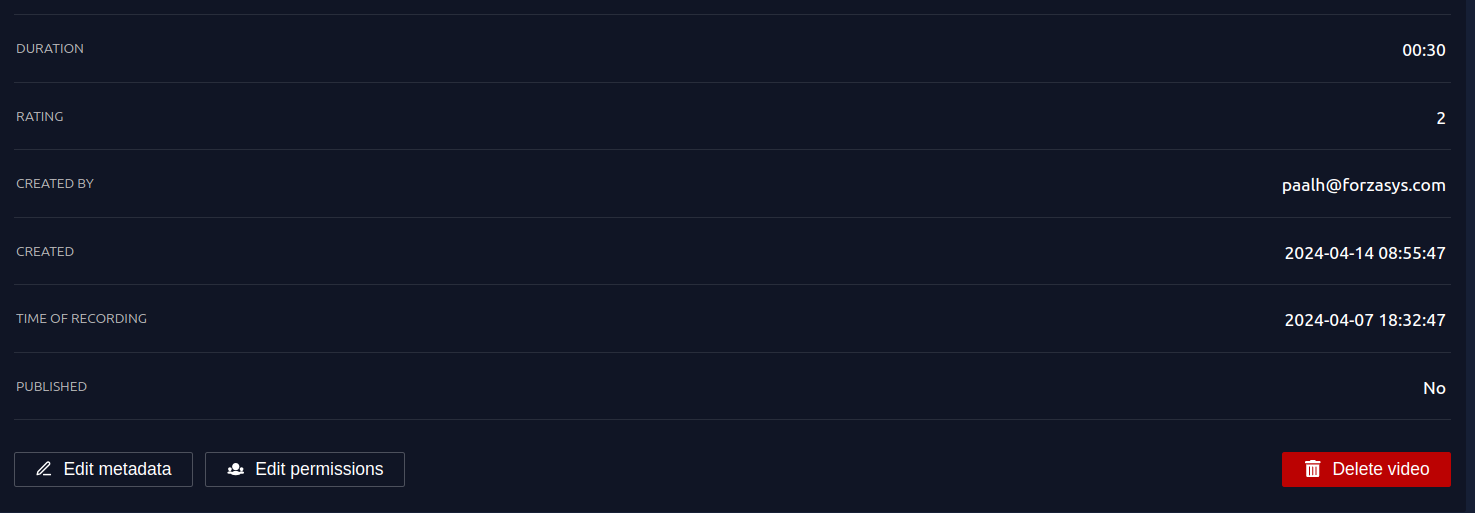
Metadata Options:
- Title and Metadata:
-
Update the title of the video or clip to easily identify it later.
-
Thumbnail Selection:
-
There are several ways to customize the thumbnail of your clip:
- Select from List: Choose a specific element from the video to set as the thumbnail.
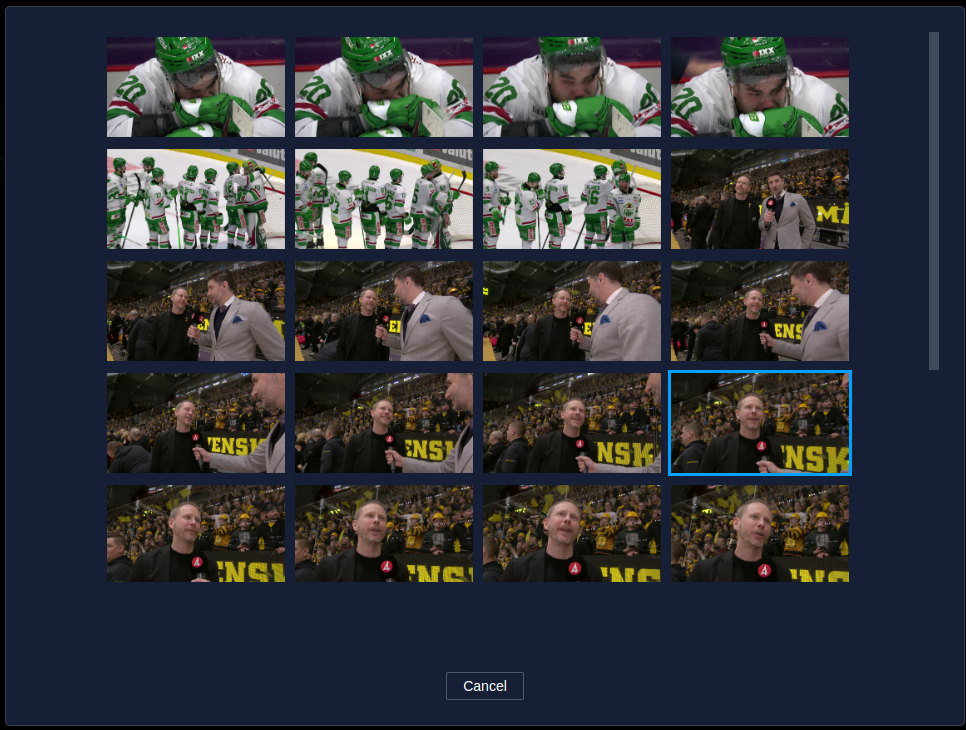
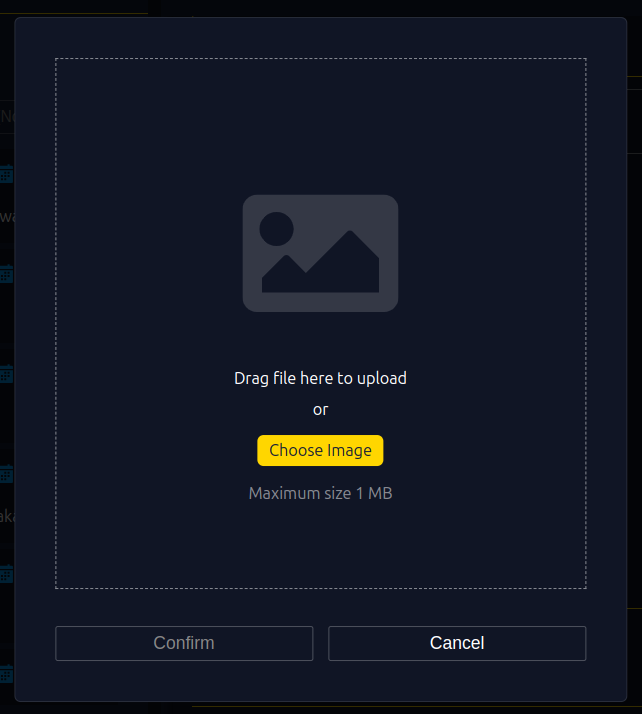
- Upload Image: If you have a custom thumbnail, click on "Upload Image" and select the desired image from your files.
- Auto-generated Thumbnail: Choose this option if you prefer a system-generated snapshot.
-
Pre-roll and Post-roll Settings:
- Customize how much of the video plays before or after the main content by setting Pre-roll and Post-roll durations.
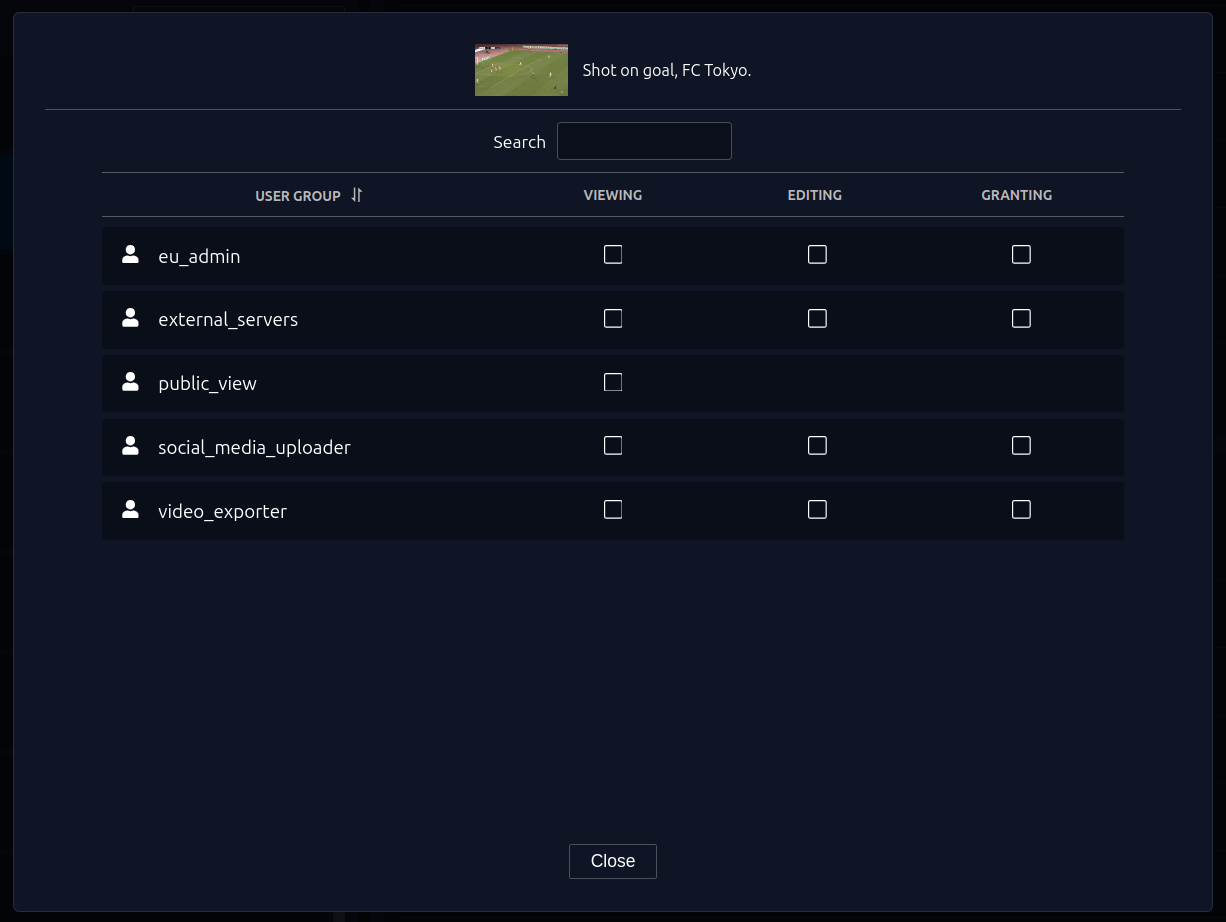
5. Manage Permissions and Finalize:
Once you’ve finished adjusting the video, it's important to set the appropriate permissions:
- Click on the "Edit Permissions" button if you need to control who can view or edit the video.
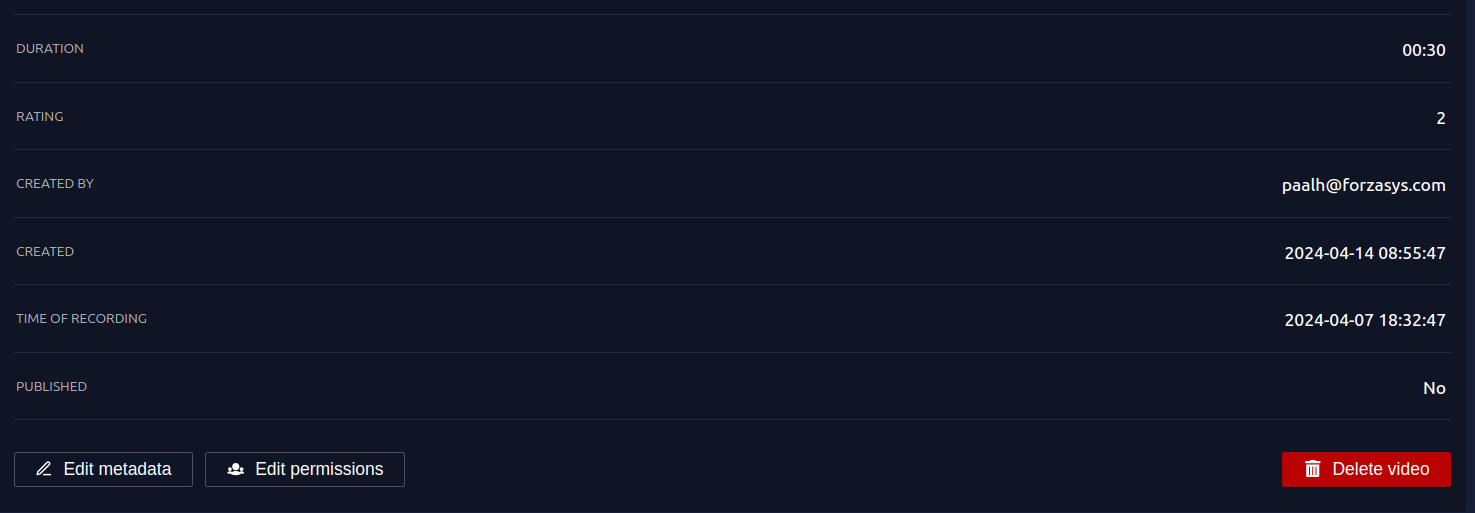
- Review all your changes and permissions. If everything looks good, click "Close" to finalize the process.
Need Help?
If you encounter any issues, don’t hesitate to contact our Support Team for help.