Share to TikTok
You can easily share your exported videos directly to TikTok through the MAM platform. This guide walks you through the entire process—from selecting the export to configuring posting options on TikTok.
Steps to Share to TikTok
1. Open the Export Table
To begin:
- Go to the top navigation bar.
- Click on Export to open the export table, where you’ll find all previously exported videos.
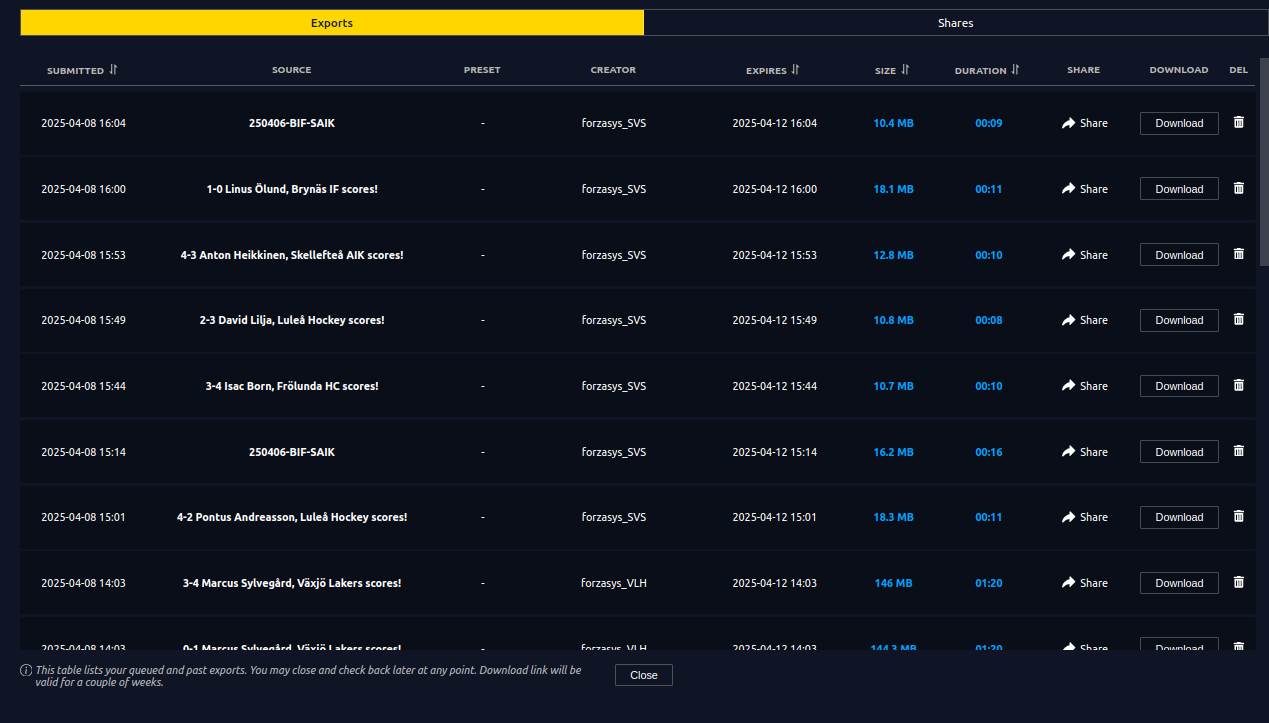
2. Select a Video to Share
- From the export table, locate the video you want to share.
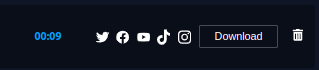
- Hover over the Share button on the selected video.
- From the dropdown, click on TikTok.
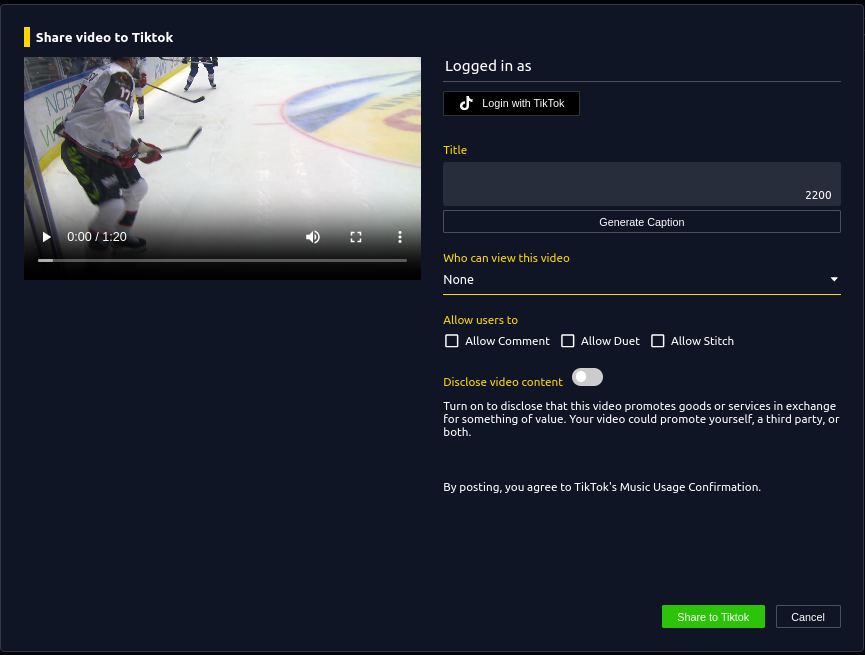
3. TikTok Share Window
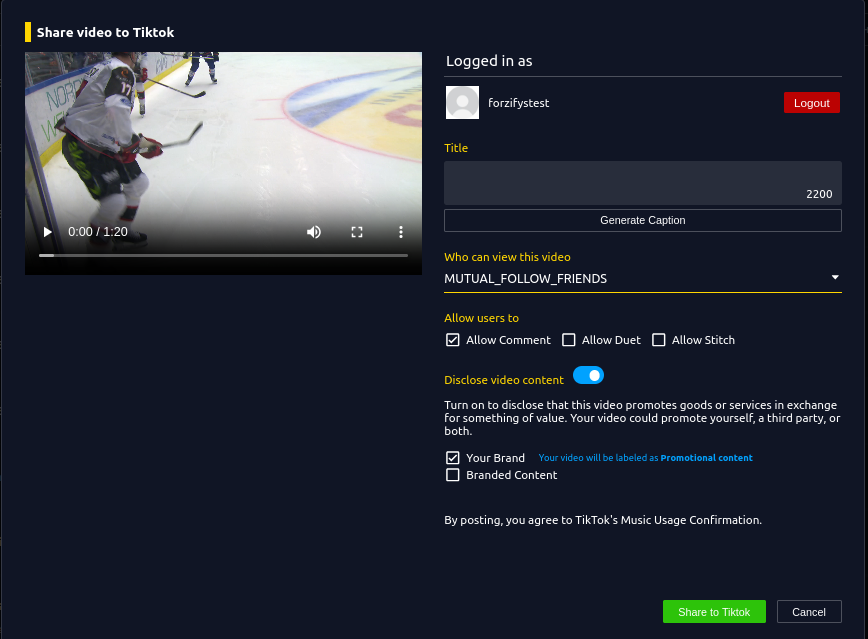
After selecting TikTok, a new share window will appear.
In this window, you’ll be able to:
- Preview the video you're about to share.
- Log in to your TikTok account.
- Add a Title.
- Click Generate Caption to let AI help write a caption.
- Choose Who can view this video: Everyone, Friends, Only me
- Set Allow users to options: Allow Comments, Allow Duet, Allow Stitch
- Enable Disclose video content if your post promotes goods or services in exchange for value.
📌 Note: By posting, you agree to TikTok’s Music Usage Confirmation.
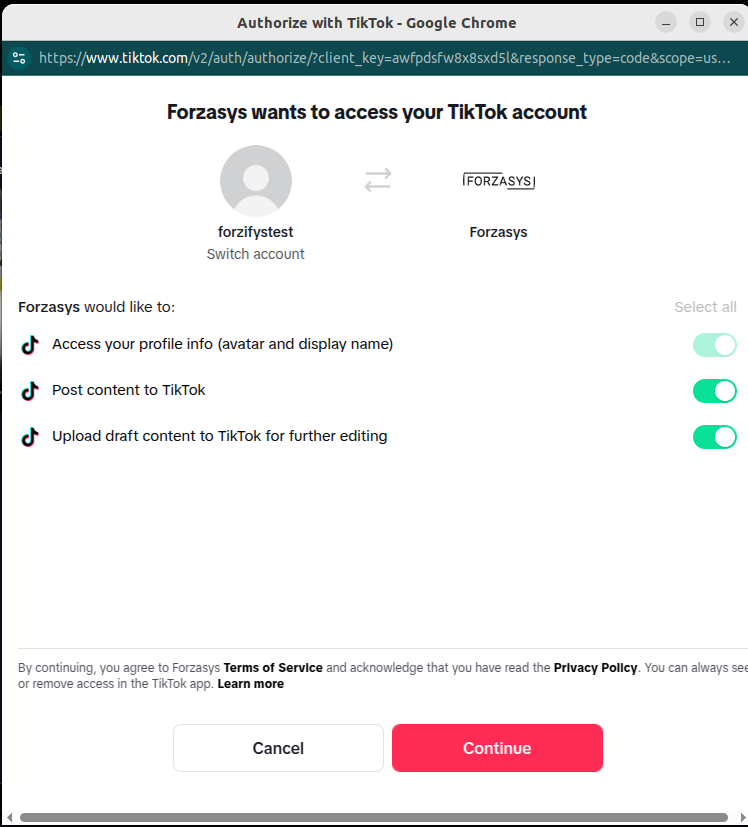
4. Log in to TikTok
Click on Log in to TikTok.
A pop-up window will appear asking for your TikTok credentials and requesting permissions for the Forzasys app to post on your behalf.
✅ Tip: Grant all required permissions to ensure the post goes through without a hitch.
5. Return to MAM & Share
Once logged in:
- The login window will automatically close.
- You’ll return to the TikTok share screen, now showing your TikTok handle at the top.
Review all fields—Title, Caption, Privacy, Interaction Settings, and Disclosure—then click Share.
6. Monitor Share Status in Share Table
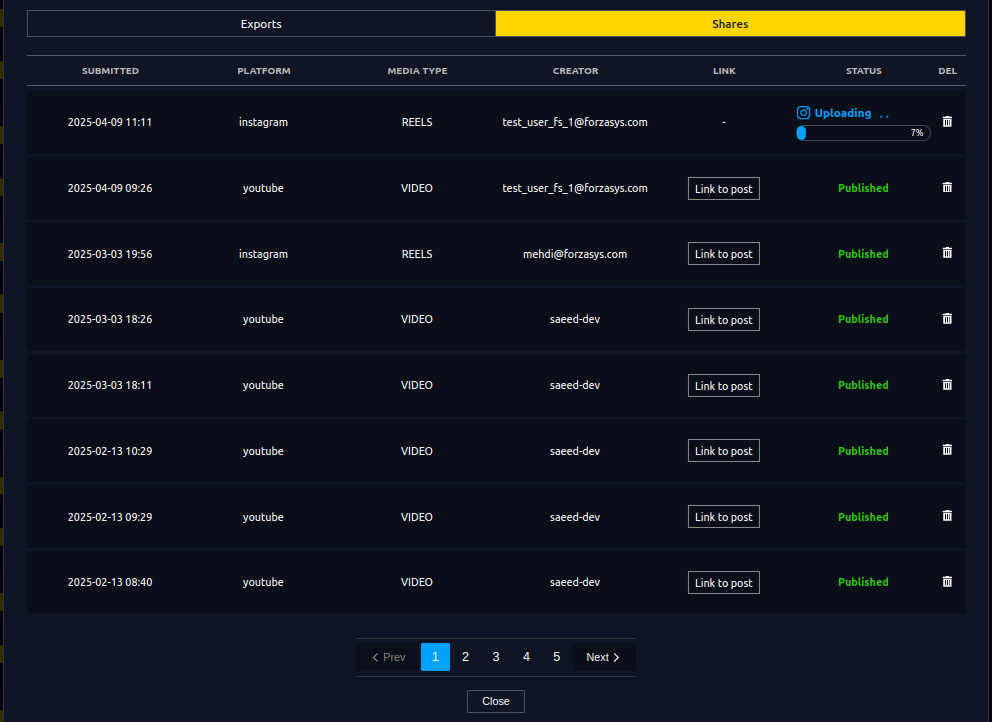
After clicking Share, the Share Table will open automatically.
Here you’ll see:
- The status of your current TikTok post.
- A history of previous and scheduled social media shares.
- A direct link to the TikTok post once it’s live.
7. View the Post on TikTok
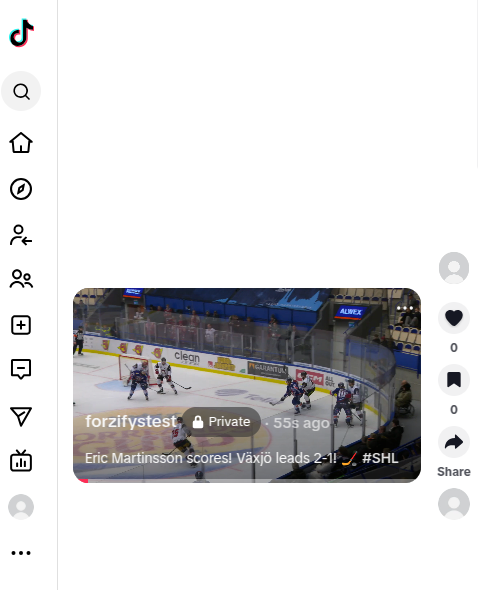
Once the upload is complete, click on the Link to Post in the Share Table to open your video directly on TikTok.
- You’ll be redirected to the post.
- From there, you can monitor performance—views, likes, comments, shares—and adjust visibility settings if needed.
Need Assistance?
If something doesn't go as expected, don’t worry! Reach out to our Support Team and we’ll get you sorted.