Forzify Adobe Premiere Pro Plugin Guide
This guide will walk you through the installation and basic usage of the Forzify plugin for Adobe Premiere Pro. Once installed, you'll be able to easily export and download videos from Forzify MAM directly through Premiere Pro.
How to Install the Forzify Plugin
Follow these steps to install the Forzify plugin within Adobe Premiere Pro:
Requirements
The plugin (Forzify Import) requires Adobe Premiere Pro 25.6 or newer.
1. Install the Plugin
- Download the Forzify plugin from the Adobe Marketplace.
- Follow the installation instructions provided during the download process.
2. Open the Plugin in Premiere Pro
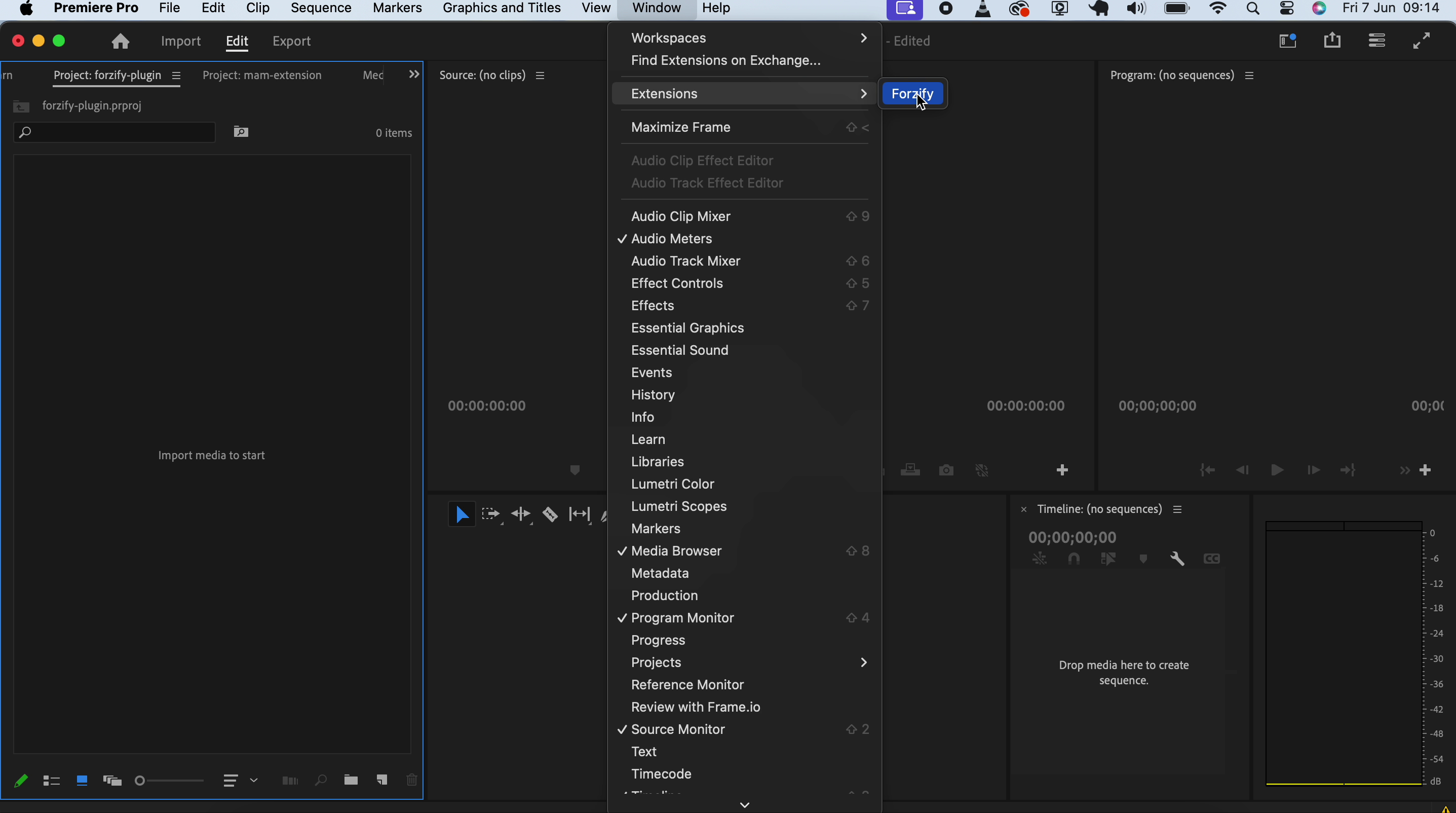
- In Adobe Premiere Pro, go to Window → Extensions (UXP) and select Forzify Import.
Pairing the Plugin
The plugin connects to Forzify using a single-use pairing code that you generate in the MAM — there is no URL to type and no separate password.
1. Generate a Pairing Code
- In the MAM top navigation bar, open the Other menu and click Pair Premiere plugin.
- Click Generate code. A pairing code appears — it can be used only once and expires after five minutes. Click the code to copy it.
2. Enter the Code in Premiere
- In the Forzify Import panel, paste the code into the Pairing code field and click Pair.
- The plugin automatically connects to the correct Forzify backend — you never type a URL.
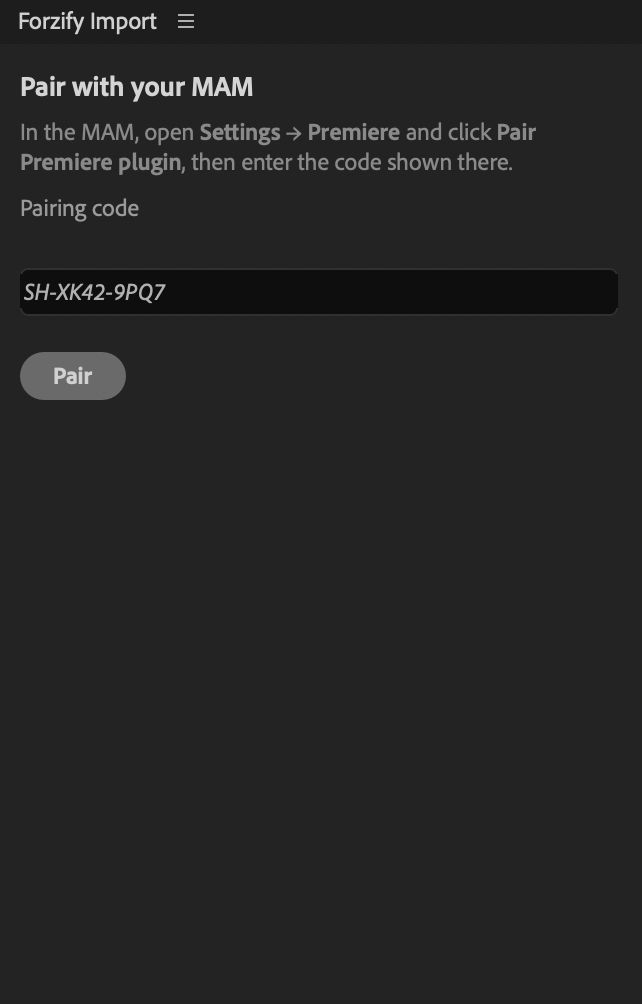
If the code expires before you use it, simply generate a new one.
Once paired, the plugin stays connected for up to 48 hours of inactivity (30 days maximum). After that, or if you click Unpair, just generate a new code and pair again.
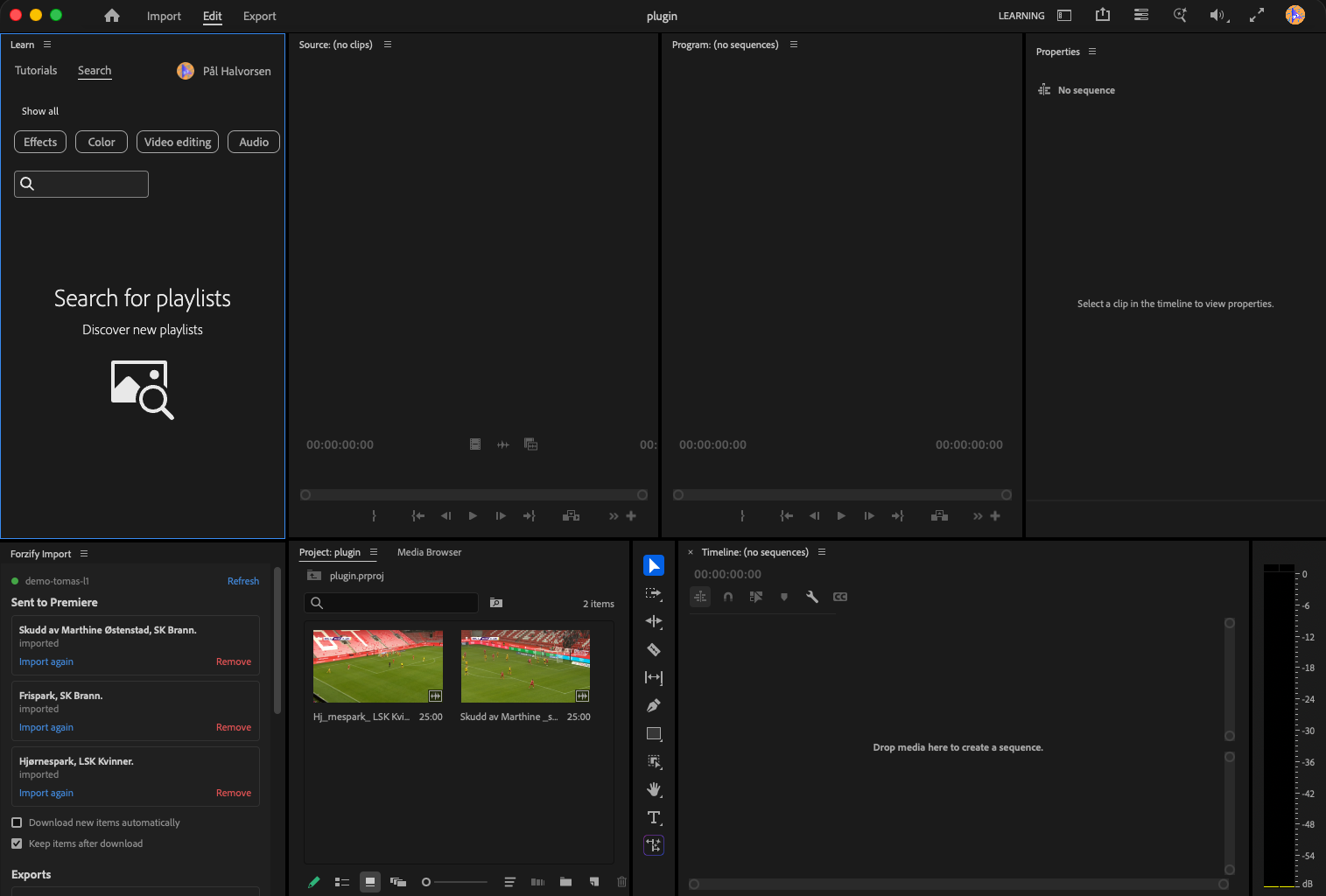
Once paired, the Forzify Import panel is connected to your Forzify account and shows your videos:
The panel docks alongside your regular Premiere Pro workspace, as shown below:
Availability
The pairing flow and the Send to Premiere option are being rolled out per organization. If you do not see Pair Premiere plugin under the Other menu, this feature is not yet enabled for your organization — please contact our Support Team.
Importing Videos
There are several ways to bring videos from Forzify into Premiere Pro using the plugin:
Option 1: Send to Premiere
The quickest way once the plugin is paired.
Pair first
Make sure you have paired the plugin and have the Forzify Import panel open in Premiere before sending. The Send to Premiere button is always shown when the feature is enabled, but a video only reaches Premiere if the plugin is already paired.
- Select the clip or playlist you want to import.
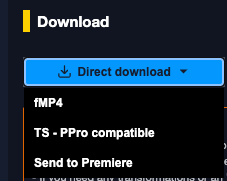
- Open the download menu and click Send to Premiere.
- The video is added to the plugin's import queue and appears in Premiere shortly.
Option 2: Import Using Direct Download
Instead of exporting with a customized setting, you can select clips for direct download.
- Click on the asset you wish to import
- Click on Direct Download and Select TS - PPRo compatible to import the video.
- For more details, see the Direct Download Guide.
Working in the Forzify Import Panel
The panel has two lists, and it checks both for new items every few seconds:
- Sent to Premiere — everything you explicitly sent from the MAM with Send to Premiere: instant clips, playlists, and prepared exports.
- Exports — your own exports from the MAM's export table, including renders still in progress (shown with their percentage).
For any item, click Import to download it and add it to your active Premiere project. Items are processed one at a time; if an import fails the item stays in the list and offers Retry so nothing is lost.
Each list has two optional switches:
- Download new items / Download new exports automatically — automatically import new entries as they arrive, without clicking Import. This only applies to items that appear after you turn the switch on; existing items are left untouched.
- Keep items / Keep exports after download — keep a row in the panel after it has been imported, instead of removing it.
About downloaded clips
Clips arrive as a single file with the highest available video quality and all audio tracks (typically international and commentary). There are no quality or audio options in the panel by design.
Need Help?
If you encounter any issues while using the Forzify plugin in Premiere Pro, please reach out to our Support Team.