Creating and Saving a Video Subclip
This guide will walk you through the process of creating and saving a video subclip using the Forzify MAM platform.
Steps to Create and Save a Video Subclip
Before You Begin
Make sure you are logged into the platform and have access to the video you want to edit.
1. Navigate to Video:
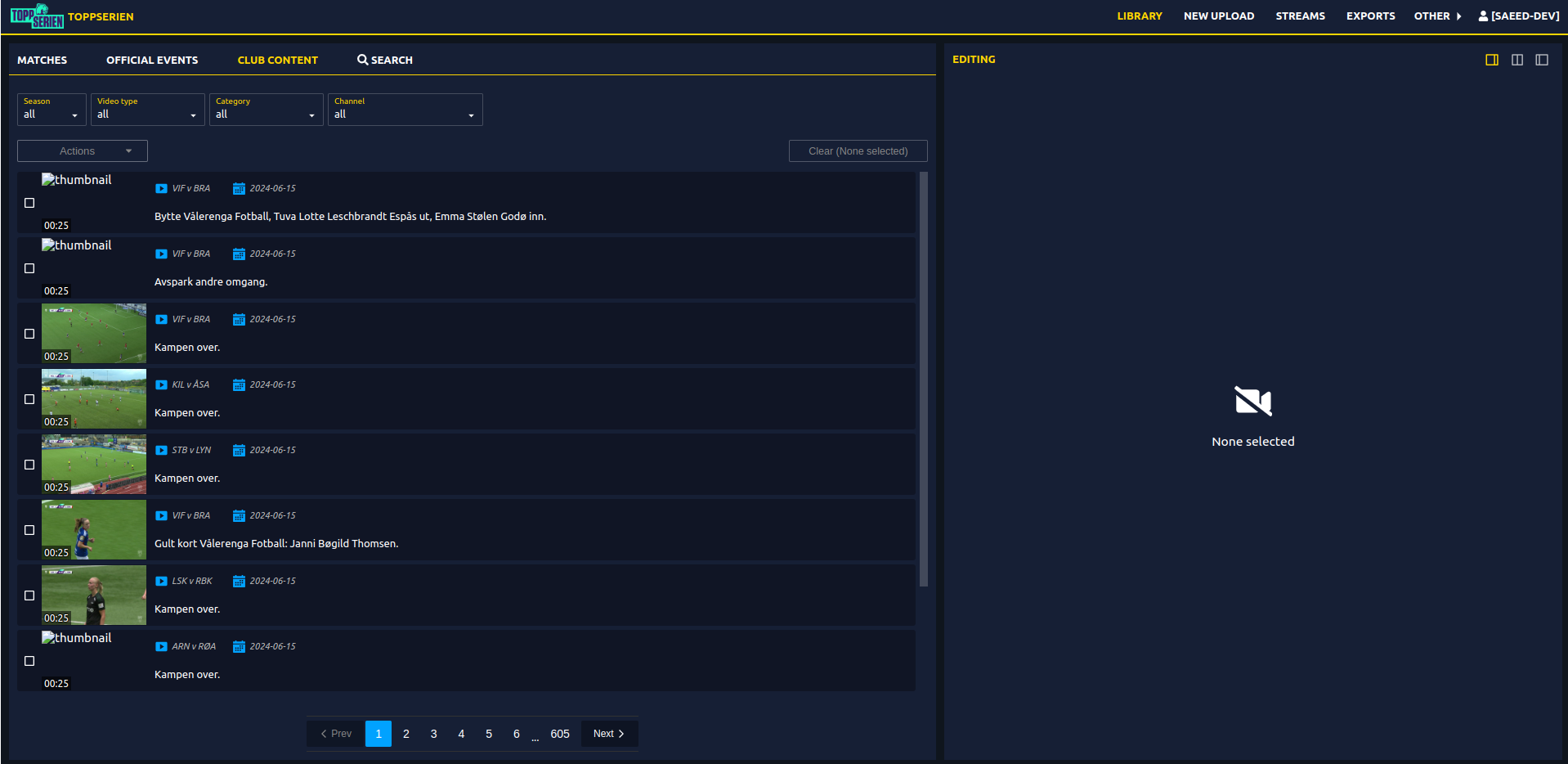
After logging in, navigate to the section where the video is stored. You can choose from the following categories:
- Matches: Choose the match you want the video from.
- Official Events: Select from official event clips.
- Club Content: Choose videos uploaded/edited as club content.
2. Select Video:
Once you've located the video in one of the categories above, click on the video thumbnail to open it for editing.
3. Create Subclip:
To start editing and creating a subclip, click the "Create Subclip" button.
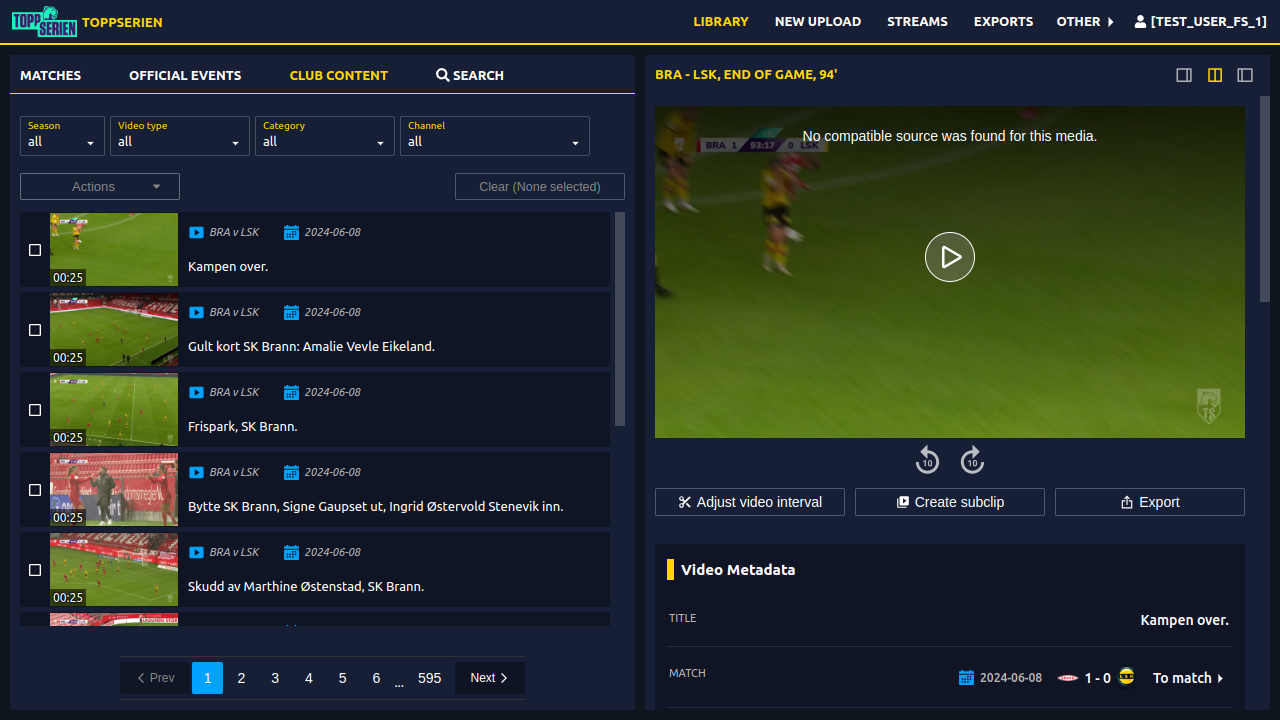
4. Adjust Video Duration:
- After clicking the "Create Subclip" button, a blue bar representing the video's timeline will appear.
- Click and drag the edges of the blue bar to adjust the video’s duration and define the exact length of your subclip.
- Once you're satisfied:
- Click "Save" to apply your changes.
- If you want to undo the changes, click "Discard".

5. Edit Metadata:
After adjusting the video’s duration, you can update its metadata for better identification.
Metadata Options:
- Title and Metadata:
- Choose an appropriate title for the subclip.
-
Select the channel and category where the subclip will be published.
-
Thumbnail Selection:
-
You have the following options to select or create a thumbnail for your subclip:
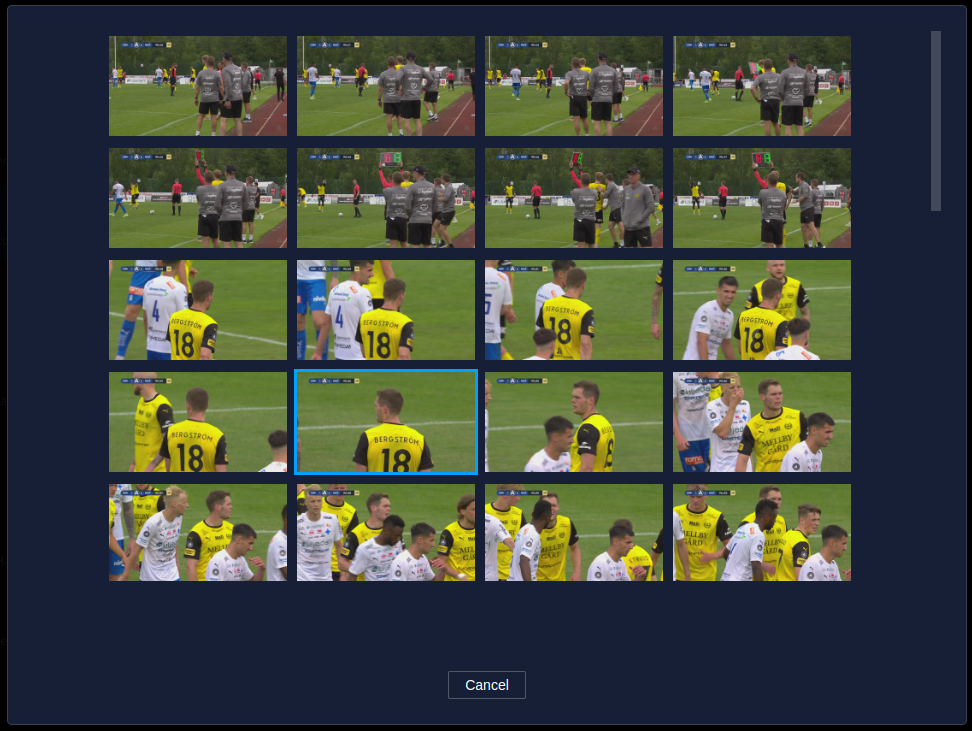
- Select from List (optional): Choose an element from the video to serve as the thumbnail.
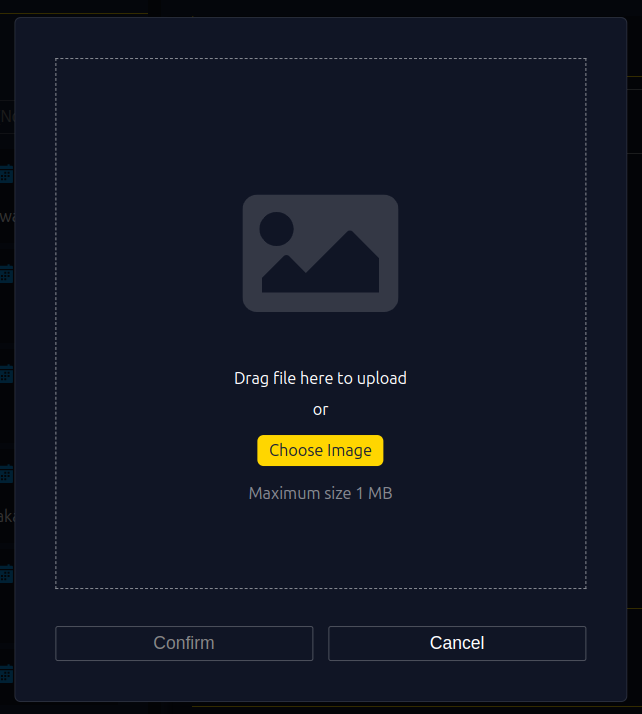
- Upload Image (optional): Upload a custom image as the thumbnail by clicking "Upload Image" and selecting a file from your device.
- Auto-generated Thumbnail: Opt for an automatically generated thumbnail, which the system will select from the video.
-
Pre-roll and Post-roll Settings:
- Set the desired pre-roll and post-roll durations to add additional video content before and after the main clip.
6. Save Subclip:
Once you’ve finalized all adjustments:
- Click on the "Save Subclip" button to store the subclip with all the selected settings.
Need Help?
If you encounter any issues while trying to create or save a video subclip, don’t hesitate to contact our Support Team for help.