Using the AI Agent
The AI Agent is a chat-based assistant built into the Forzify MAM platform. Instead of clicking through menus, you can simply ask for what you need in plain language — the agent can find games and clips, generate highlights, export videos, analyze your social media performance, and answer questions about how to use the platform.
Availability
The AI Agent is enabled per organization. If you do not see the Agent tab in the navigation bar or the chat bubble in the corner of the screen, the feature is not enabled for your account — please contact your admin or our Support Team.
Opening the Agent
There are two ways to talk to the agent:
1. The Chat Bubble (Quick Questions)
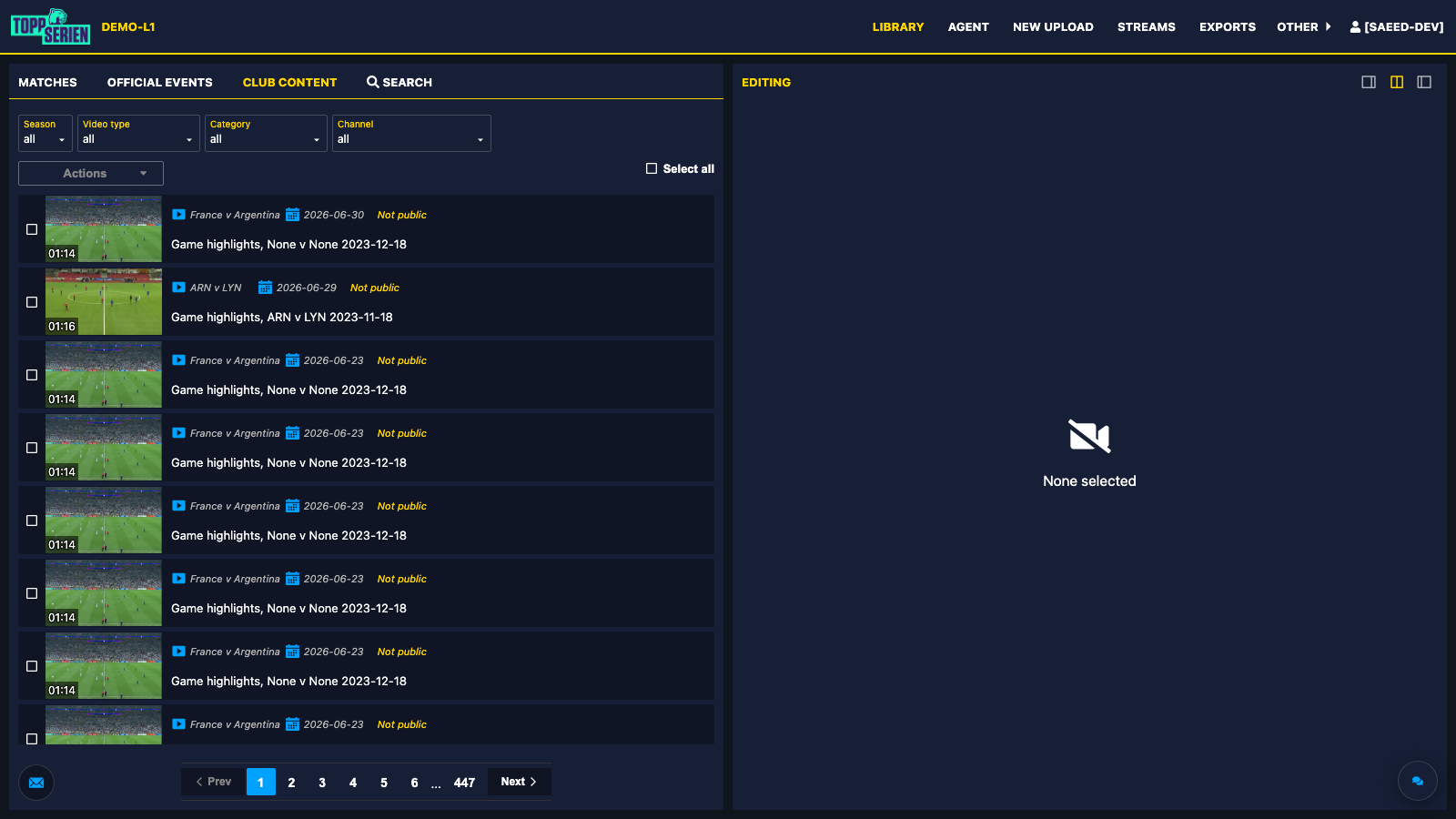
On every page of the platform, you will find a floating chat bubble in the corner of the screen. Click it to open a compact chat panel without leaving the page you are on.
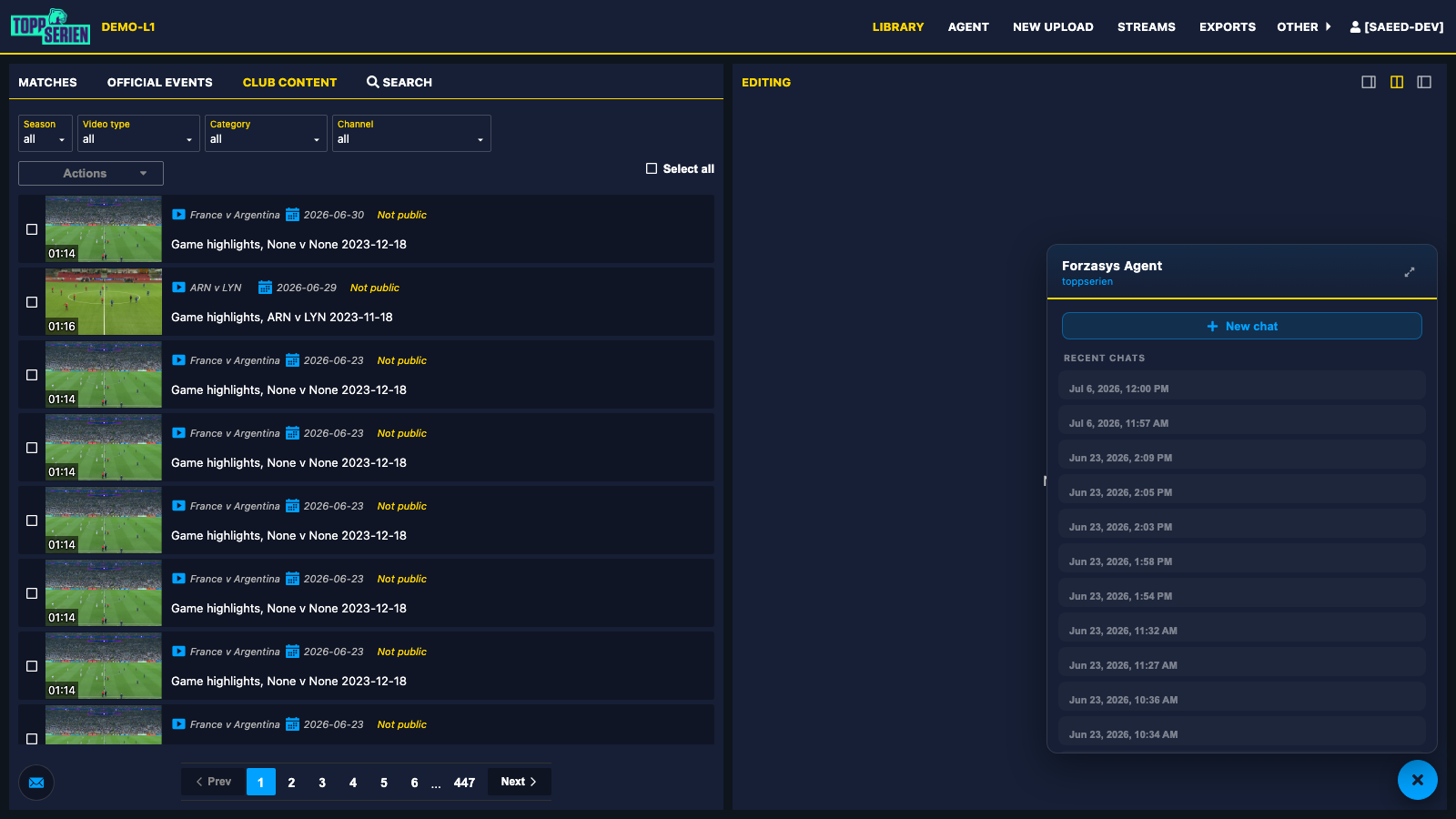
- Click "New chat" to start a conversation, or select one of your recent chats to continue where you left off.
- When the agent finds something for you — for example a match or a highlight video — it replies with a link, and the platform navigates there automatically.
- Click the expand icon in the panel header to move the current conversation into the full Agent workspace.
2. The Agent Workspace (Full Screen)
Click "Agent" in the top navigation bar to open the full workspace. The screen is split in two:
- Left side: your conversation with the agent.
- Right side: a preview pane where results open — so you can keep chatting while looking at the result.
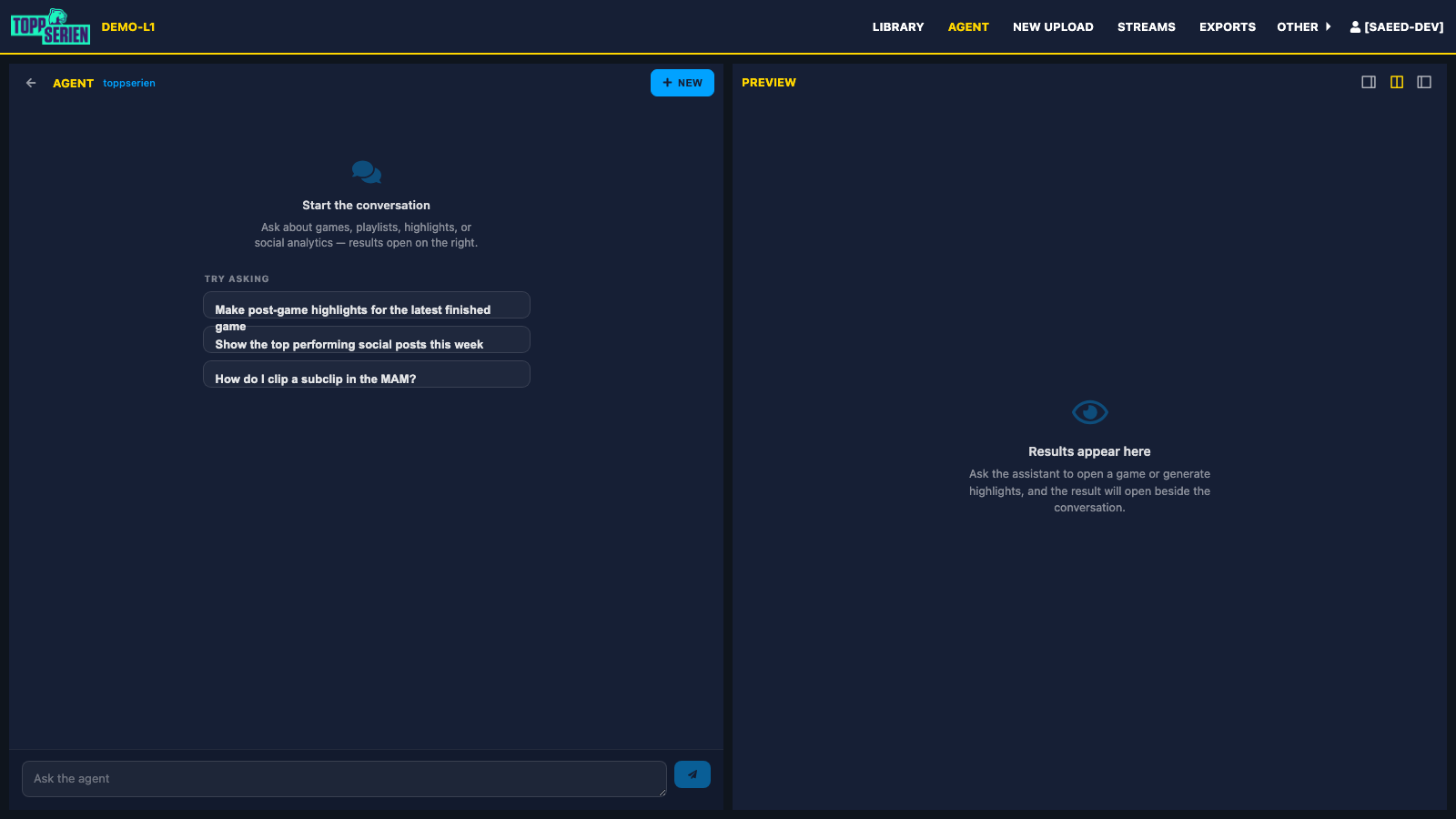
If you are new to the agent, use one of the "Try asking" suggestions to see how it works.
What Can You Ask?
Finding Content
The agent can look up games, teams, events, and video playlists for you.
- "Show me the latest finished game"
- "Find the playlists from yesterday's match"
- "List the goals from the last home game"
Generating Highlights
The agent can create highlight videos directly from a conversation:
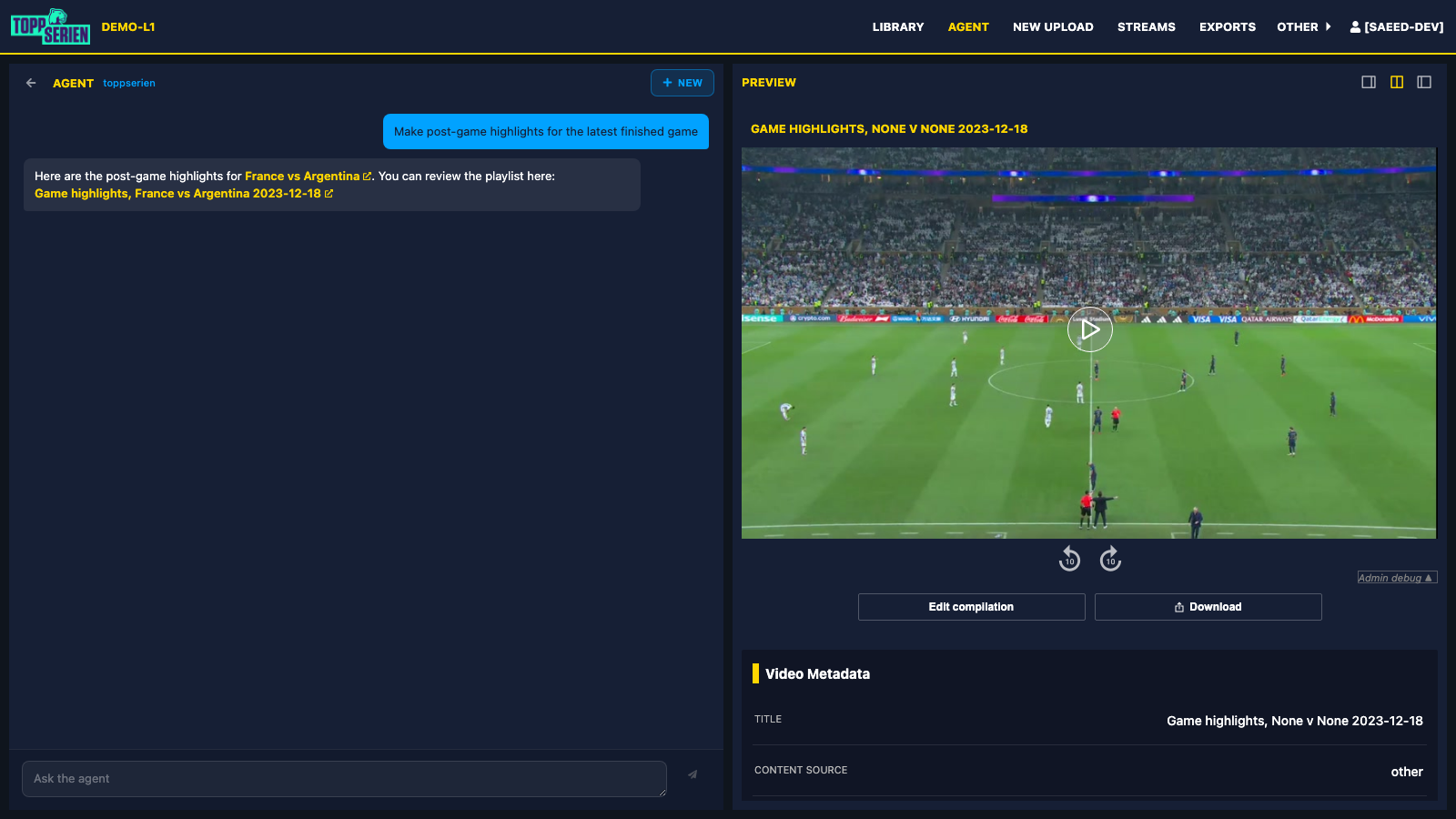
- Post-game highlights: "Make post-game highlights for the latest finished game"
- Pre-game highlights: "Create a head-to-head highlight for the upcoming game" or "Make a pre-game highlight for [team]"
- Custom suggestions: "Suggest a 3-minute highlight for this game"
When the highlight is ready, it opens in the preview pane where you can review and edit it like any other video.
Exporting Videos
You can ask the agent to export a video and check on the progress:
- "Export this highlight for YouTube"
- "What is the status of my exports?"
Social Media Analytics
The agent can summarize how your published content is performing and draw charts (see Social Media Analytics for the full statistics page):
- "Show the top performing social posts this week"
- "How did our YouTube account perform last month?"
Charts appear directly in the conversation — click a chart to open it full-size in a new tab.
Help and How-To Questions
The agent also knows the platform itself, so you can ask things like "How do I create a subclip?" and get step-by-step guidance.
Working with Conversations
- Sending messages: Type your message and press Enter to send it. Use Shift + Enter to add a line break.
- While the agent is working, a typing indicator is shown. You can follow up as soon as the reply arrives.
- New chat: Click "+ New" (workspace) or "New chat" (chat panel) to start a fresh conversation.
- Resuming: Your previous conversations are saved. Use the back arrow to see the list of recent chats and click one to continue it.
- Deleting: Click the trash icon next to a conversation in the list to delete it.
Good to know
The agent works with your user account, so it can only see and do what you are allowed to see and do on the platform.
Need Help?
If you encounter any issues while using the AI Agent, don't hesitate to contact our Support Team for help.