User Management Guide
The User Management system in the MAM allows users to view their profile, change their password, and manage user groups. Admin users can create new users and assign them to groups. This guide will walk you through the key aspects of user management.
Logging In
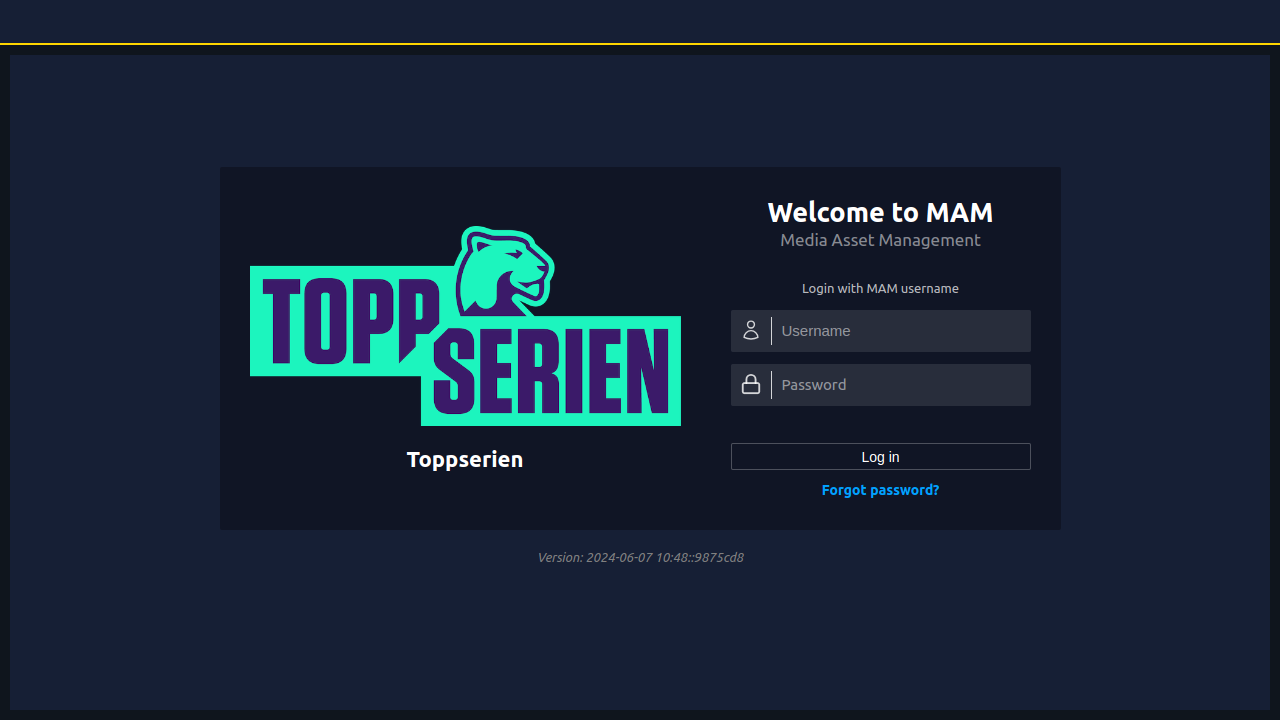
Follow these steps to log into the MAM system:
- Navigate to the login page through the main website.
- Enter your username and password in the respective fields.
- Click the Log In button to access your account.
If your admin allows logging in from an external website, click on the Log in via External Website Name button.
Resetting Your Password
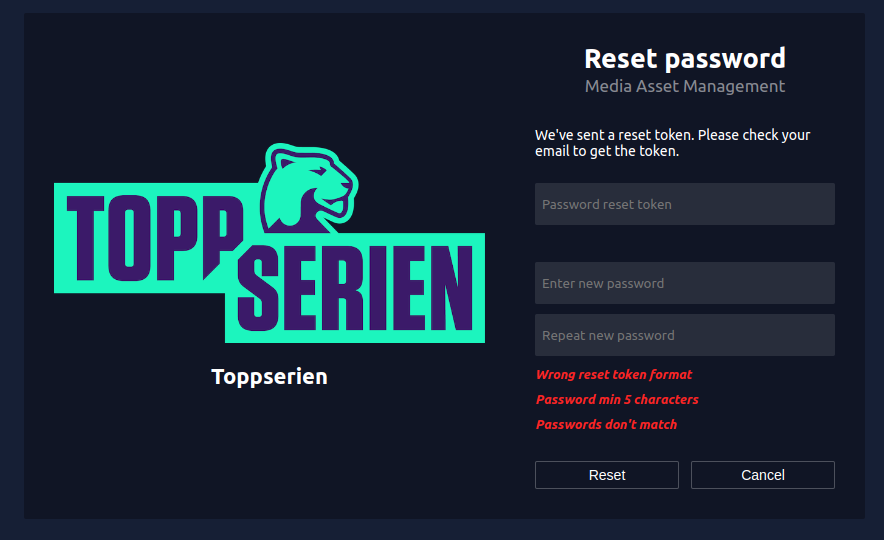
If you’ve forgotten your password, follow these steps to reset it:
- Click on the Forgot Password link on the login page.
- Enter your email address and click Submit.
- Check your email for the reset token, then enter the token along with your new password and password confirmation. Click Reset to complete the process.
Accessing the Profile Page
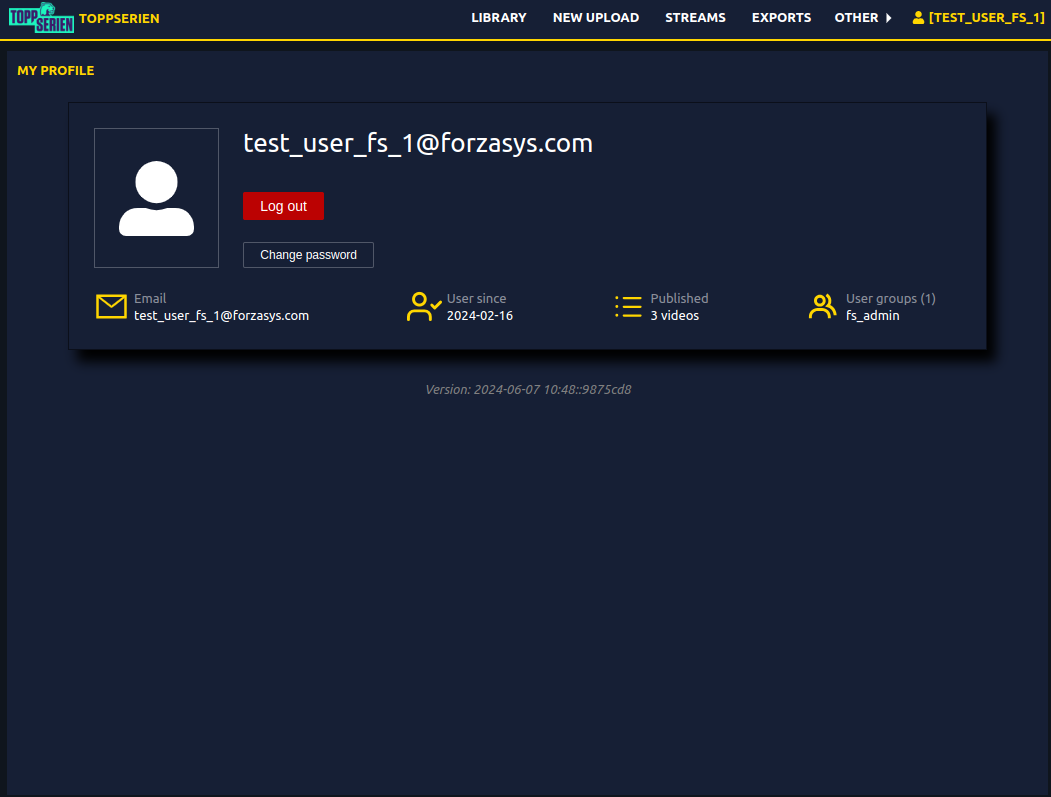
Once logged in, users can access their profile for account management.
1. Navigate to the Profile:
- Click on your username located in the top-right corner of the webpage to open the profile page.
2. View Your Groups and Published Videos:
- On your profile page, you can view the groups you belong to and see the list of videos you have published.
Changing Your Password
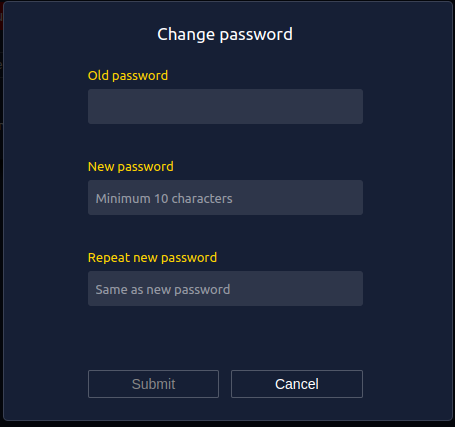
To change your password, follow these steps:
1. Go to the Profile Page:
- Click on your username in the top-right corner and navigate to the profile page.
2. Change Password:
- Click the
Change Passwordoption. - Enter your old password, then your new password.
- Confirm the new password and click Submit.
Managing Users (Admin Only)
Admins can create and manage users, as well as assign them to user groups.
Creating a New User
Follow these steps to create a new user:
1. Navigate to the User Management Section:
- From the top menu, go to Other > Users.
2. Create a New User:
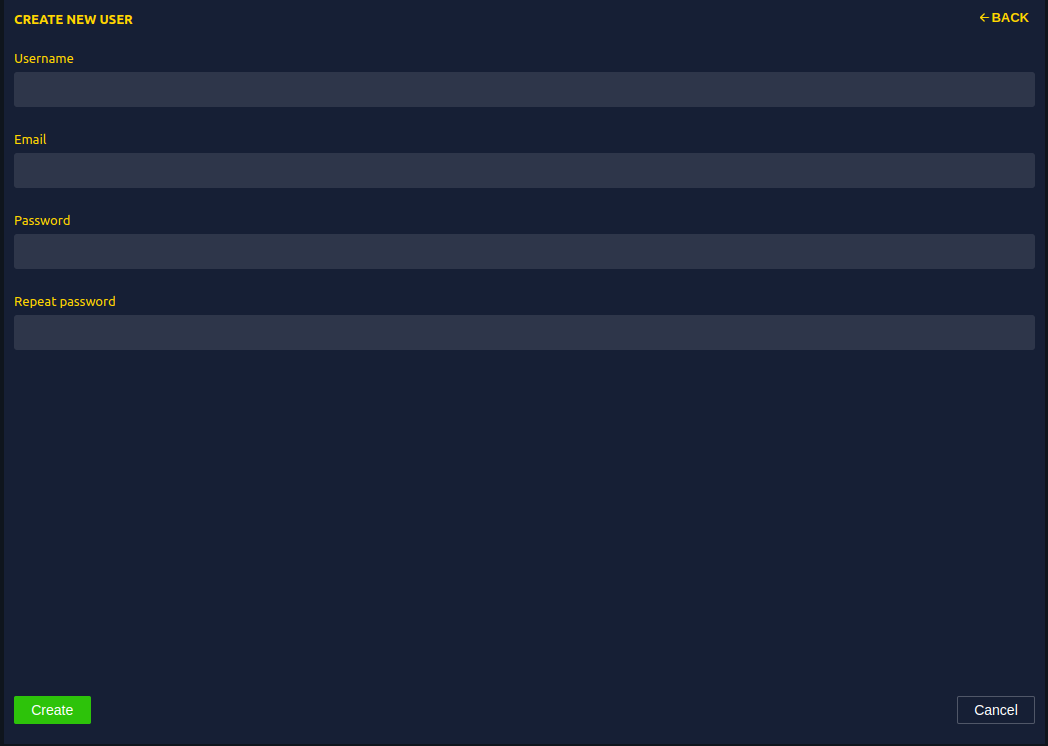
- Click the Create new user button at the top right of the Users page.
- Fill in the necessary information, such as username, email, and password, then click Create.
- Share the credentials with the user and ask them to change their password after their first login.
Assigning Users to Groups
Admins can assign users to groups to manage permissions.
1. Navigate to User Groups:
- From the Other -> Users page, select a specific user group.
2. Add User to Group:
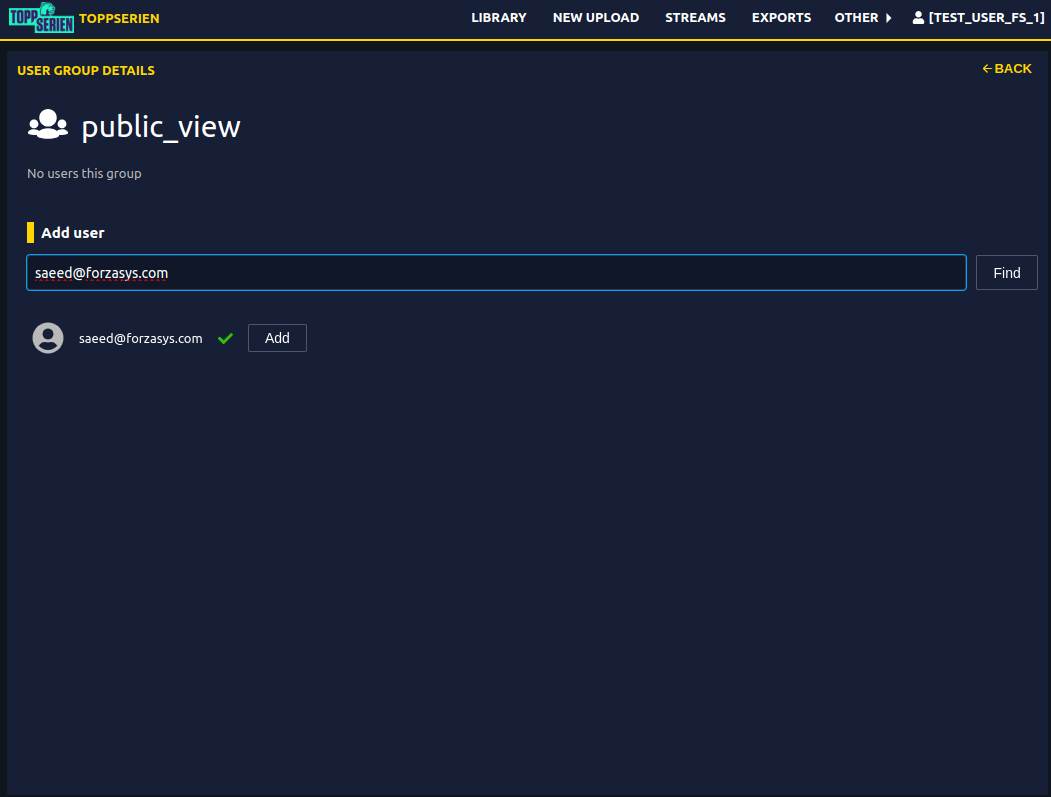
- Click on the User Group you wish to assign the user to.
- Search for the user by username or email, select them, and click Find.
- Click Add next to the user you searched for.
Logging Out
To log out of the MAM system:
1. Go to the Profile Page:
- Click on your username in the top-right corner.
2. Log Out:
- Click the Log Out button to safely end your session.
Need Help?
If you encounter any issues while managing users or need assistance with user group management, please contact our Support Team.